
How to Set Up and Use Google Wallet in Nigeria (Step-by-Step 2026 Guide)
- November 24, 2026
- 9
- Guides
Quick Answer: To set up Google Wallet in Nigeria, install the Google Wallet app from the Google Play Store on an NFC-enabled Android phone, tap Add to Wallet, scan an eligible Mastercard or Visa card from GTBank, UBA, Zenith Bank, FirstBank, or Providus Bank, and verify using your bank’s SMS or email OTP. Once verified, unlock your phone and hold it near any contactless POS terminal to tap and pay.
Whether you are settling a bill at a restaurant in Lagos, checking out at a supermarket in Abuja, or purchasing domestic flight tickets online, everyday payments in Nigeria are undergoing a major shift. For years, consumers have relied on two primary checkout methods: handing over a physical debit card to enter a PIN, or initiating a bank transfer and waiting for confirmation alerts while checkout queues build up.
When TechCabal reported on Google Wallet and Google Pay rolling out in Nigeria, it introduced a faster, more secure alternative. Android users across the country can now link eligible Nigerian bank cards to their smartphones and complete transactions by tapping at contactless POS terminals or checking out online within seconds.
What Do You Need to Use Google Wallet in Nigeria?
To use Google Wallet for contactless tap-to-pay in Nigeria, you require three essentials: an Android smartphone equipped with an NFC chip, Android 9.0 or higher with an active screen lock, and an eligible bank card from a participating Nigerian bank.
Verifying these three prerequisites beforehand prevents the majority of setup errors:
- An Android Phone with NFC (for in-store POS payments): To tap your device at a physical POS terminal, your smartphone must include an NFC (Near Field Communication) chip. Flagship devices from Samsung, Google Pixel, and Xiaomi feature NFC by default, whereas many budget Android smartphones sold in Nigeria (including certain entry-level Tecno, Infinix, and itel models) lack NFC hardware. Note: Devices without NFC can still use Google Wallet for online and in-app checkouts, though physical POS tap-to-pay will not function.
- Updated Android Software & Active Screen Lock: Your device must run Android 9.0 or higher with an active PIN, pattern, password, or biometric lock enabled. For security compliance, Google prevents adding payment cards to unlocked devices.
- An Eligible Nigerian Bank Card: You need a supported Mastercard or Visa card issued by a participating Nigerian bank, alongside access to the phone number or email address registered with your bank account for One-Time Password (OTP) authentication.
How Do I Check If My Android Phone Has NFC?
Open your smartphone’s Settings app, tap the search bar at the top, and enter “NFC.” If an option for NFC or Contactless payments appears in the results, your device supports tap-to-pay at Nigerian POS terminals.
Which Nigerian Banks and Cards Work on Google Wallet?
As of November 2026, five Nigerian commercial banks support Google Wallet: GTBank, UBA, Zenith Bank, FirstBank, and Providus Bank.
As Techpoint Africa reported during the Nigerian launch, Google partnered with these financial institutions and local payment switch Interswitch alongside Mastercard and Visa tokenisation networks. Card eligibility depends on the specific card network:
| Bank | Supported Card Types | Cards Not Supported Yet |
|---|---|---|
| GTBank | Mastercard Debit & Prepaid cards | Verve cards, Visa debit cards |
| UBA | Mastercard Debit, Credit & Prepaid; Visa Prepaid cards | Verve cards, standard Visa debit |
| Zenith Bank | Mastercard Debit, Credit & Prepaid cards | Verve cards, Visa cards |
| FirstBank | Eligible Mastercard Debit cards | Verve cards, AfriGO cards |
| Providus Bank | Mastercard Debit, Credit & Prepaid cards | Verve cards |
Do Verve, OPay, Moniepoint, Kuda, or PalmPay Cards Work on Google Wallet?
No. Verve cards, AfriGO cards, and cards issued by Nigerian fintech platforms—including OPay, Moniepoint, Kuda, and PalmPay—are not currently supported on Google Wallet.
While Google and local payment processors are expected to broaden card compatibility over time, users should disregard social media or WhatsApp messages claiming to “manually activate” Verve or fintech cards for Google Pay, as such offers are fraudulent.
How Do I Set Up Google Wallet on My Android Phone?
Setting up Google Wallet in Nigeria takes under five minutes by installing the application, scanning an eligible bank card, completing OTP verification, and designating Google Pay as your default contactless payment service.
Step 1: Download the Google Wallet App
Open the Google Play Store, search for Google Wallet, and select Install (many newer Android smartphones include the app pre-installed). Launch the app and ensure you are signed into your primary Google account.
Step 2: Add Your Nigerian Bank Card
- Tap the blue Add to Wallet button in the bottom-right corner of the screen.
- Select Payment card, then choose New credit or debit card.
- Align your physical bank card within the camera frame to scan the card number and expiration date automatically, or select Enter details manually to input the 16-digit card number, expiry date, and 3-digit CVV.
- Verify that your billing address matches the Nigerian address registered with your bank.
Step 3: Accept Bank Terms and Verify Your Identity
- Tap Save and continue, review your bank’s digital wallet terms and conditions, and tap Accept.
- Choose SMS or Email verification to receive a One-Time Password (OTP) from your bank.
- Enter the verification code when prompted. (In some instances, your bank may require you to approve the tokenisation request directly inside your mobile banking app or via customer support.)
Step 4: Set Google Pay as Your Default Contactless App
Once verified, your card will appear on the Google Wallet home screen displaying a contactless wave symbol. Navigate to Phone Settings → Connected devices → Connection preferences → NFC → Contactless payments and confirm that Google Pay is selected as your default payment application.
How Do I Use Google Pay at POS Terminals and Online in Nigeria?
To pay in physical retail locations, unlock your smartphone and hold the back of the device near a contactless POS terminal; to pay online, select the Google Pay button at checkout across supported Nigerian payment gateways such as Paystack, Interswitch, and Squad.
How to Pay in Physical Stores (Tap to Pay)
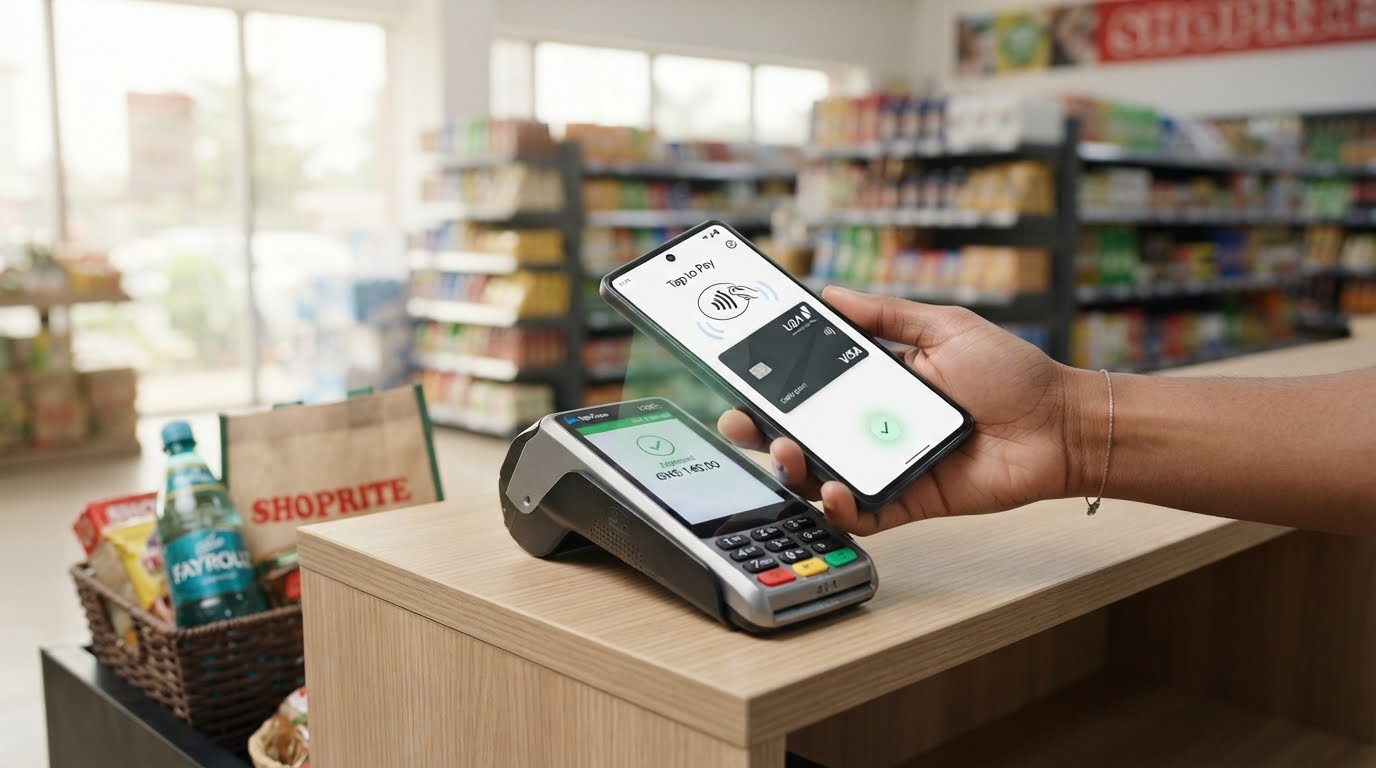
In-store contactless payments work wherever you see the contactless symbol (four curved lines resembling a sideways Wi-Fi icon) or the Google Pay logo on a merchant’s POS terminal:
- Enable NFC from your smartphone’s quick settings panel.
- Unlock your device using your fingerprint, facial recognition, or PIN (you do not need to open the Google Wallet app—simply unlock your screen).
- Hold the back of your phone within 2 to 4 centimetres of the POS terminal’s contactless reader for two seconds.
- Wait for the confirmation checkmark and gentle vibration on your screen.
POS Infrastructure & CBN Contactless Limits: Major supermarkets, pharmacies, quick-service restaurants, and fuel stations in cities such as Lagos, Abuja, and Port Harcourt have deployed NFC-enabled POS terminals, though many smaller neighbourhood retailers still operate older chip-and-PIN terminals. Carrying your physical debit card as a backup remains advisable. Under Central Bank of Nigeria (CBN) contactless payment guidelines, single tap transactions up to ₦15,000 (and cumulative daily transactions up to ₦50,000) process without a PIN prompt, while higher transaction values require entering your card PIN on the POS terminal.
How to Pay Online and Inside Apps
Major Nigerian payment gateways, including Paystack, Interswitch, and Squad (by HabariPay), integrate Google Pay across participating online stores and mobile applications:
- Select the Google Pay option at checkout.
- Choose your saved GTBank, UBA, Zenith Bank, or FirstBank card.
- Authenticate with your fingerprint or device lock—eliminating the need to manually enter card numbers or wait for repeated SMS tokens.
Is Google Wallet Safe to Use in Nigeria?
Yes. Google Wallet safeguards your Nigerian bank card through tokenisation, replacing your actual 16-digit card number with an encrypted, one-time virtual token for every transaction.
Handing a physical debit card to a cashier carries the risk of card skimming or unauthorised copying of card details and CVV codes. Google Wallet mitigates these risks through multiple layers of security:
- No Real Card Numbers Transmitted: Neither the POS terminal nor the online merchant ever receives or stores your actual bank card number.
- Mandatory Biometric or PIN Authentication: If your smartphone is lost or stolen, unauthorised users cannot complete tap-to-pay transactions without passing your fingerprint, face unlock, or device PIN first.
- Remote Lock and Wipe: You can sign into Google Find My Device from any web browser to immediately lock your screen, suspend your digital wallet tokens, or erase the device remotely.
Why Won’t My Nigerian Card Add to Google Wallet? (Troubleshooting)
Most Google Wallet setup failures in Nigeria occur because the card belongs to an unsupported network (such as Verve or OPay), online/web transactions are disabled in the bank’s mobile app, or the Android device lacks Google security certification.
- “Your card couldn’t be added / Contact your bank”: Confirm that your card is an eligible Mastercard (or UBA Visa prepaid card) issued by one of the five participating banks. Verve cards and fintech cards from OPay, Moniepoint, Kuda, or PalmPay are currently declined.
- Online or web payments are disabled: Open your bank’s mobile app, navigate to Card Controls / Card Settings, and ensure Online / Web Payments is switched on to permit card tokenisation.
- Delayed OTP from your bank: Telecommunications congestion can occasionally delay SMS verification codes. Wait two minutes before requesting a new code, or choose Email verification where available.
- “Your phone doesn’t meet security standards”: Google Wallet restricts rooted Android devices, phones with unlocked bootloaders, and uncertified custom ROMs.
Frequently Asked Questions
Do I need mobile data or Wi-Fi to tap and pay with Google Wallet?
No. An internet connection is only required when adding your card for the first time. Once configured, Google Wallet stores encrypted payment tokens locally on your smartphone’s secure element, allowing you to tap and pay at POS terminals completely offline.
Can I use Google Wallet on an iPhone in Nigeria?
No. Google Wallet is designed exclusively for Android smartphones and Wear OS smartwatches. iPhone users rely on Apple Wallet, which does not yet support Nigerian Naira bank cards natively.
Does Google charge extra fees for using Google Pay in Nigeria?
No. Google charges no additional consumer fees to add a card or complete transactions via Google Wallet. Standard bank charges or merchant POS fees continue to apply as they would with a physical card.
Can I store flight tickets and boarding passes in Google Wallet?
Yes. Beyond payment cards, users can store digital boarding passes from supported airlines in Nigeria, event tickets, and loyalty cards inside the Google Wallet app for convenient access at airport security checkpoints and boarding gates.
Conclusion
The arrival of Google Wallet and Google Pay marks a significant milestone in Nigeria’s transition toward faster, safer cashless transactions. While card compatibility is currently limited to eligible Mastercard and Visa cards from GTBank, UBA, Zenith Bank, FirstBank, and Providus Bank, the convenience of tapping an NFC-enabled Android smartphone at checkout—combined with bank-grade tokenisation security—offers a clear upgrade over traditional card-and-PIN payments or delayed bank transfers.
As more Nigerian banks, fintech platforms, and retail merchants adopt contactless payment infrastructure, setting up Google Wallet today ensures you are ready to pay effortlessly both in-store and online across the country.


Add Comment